Today, I saw a strange notification quickly flash above my taskbar that looked like I was infected by some virus that showed ads, the sort of which I haven't personally seen in over a decade. Alas, it wasn't malware, it was Windows 11.

Many have argued that the various ways that Windows 11 promotes Microsoft services onto its users isn't really ads because they're first party, nor the fact it comes installed with third-party applications is ads because people just really use Spotify and that's a good service for listening to music online, but this time it's literally an ad. It's a popup ad for a game you don't even have installed that Microsoft didn't even make. A bona fide ad. It doesn't get more ad than this. If I didn't know better I'd assume it's a virus. The problem is the virus is the operating system now.
This sort of thing is why I've started using Linux Mint, by the way. Because I don't want ads in my operating system. It's also why I use Linux Mint instead of Ubuntu. Because I don't want ads in my operating system.
I even assumed it was Steam for a moment because it was a game, but Steam would never. I'm sorry for doubting you, Gabe.
How to Disable the Ads on Windows 11
For now, it's still possible to disable this adware by following the following steps:
1: click on your system clock on the taskbar to show the calendar and the notifications. Note that if you didn't know this, you would have no idea that the notifications are kept in the system clock for some reason.
2: if the ad appears in the notification panel under a "Suggested" section, move your mouse cursor over the ad to reveal a three dots button and an X button. Note that if you didn't know this, you would have no idea that you have to hover over the thing to display its controls.

3: click on the three dots to display the dropdown menu.
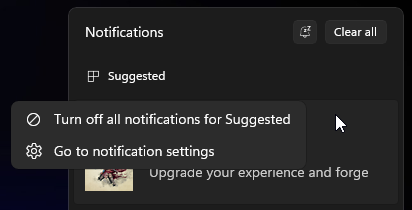
4: select "Turn off all notifications for Suggested."
Note that while these steps may appear simple for people with thousands of hours navigating computers, keep in mind that even people who don't know how to create a folder use computers, so "yeah but you could just disable it" isn't really a justification for including adware into an operating system.
If your "suggestions" were so good, I would opt into them, not out of them.